
ihor@dev:~$ cat extension-overview.md
About this extension
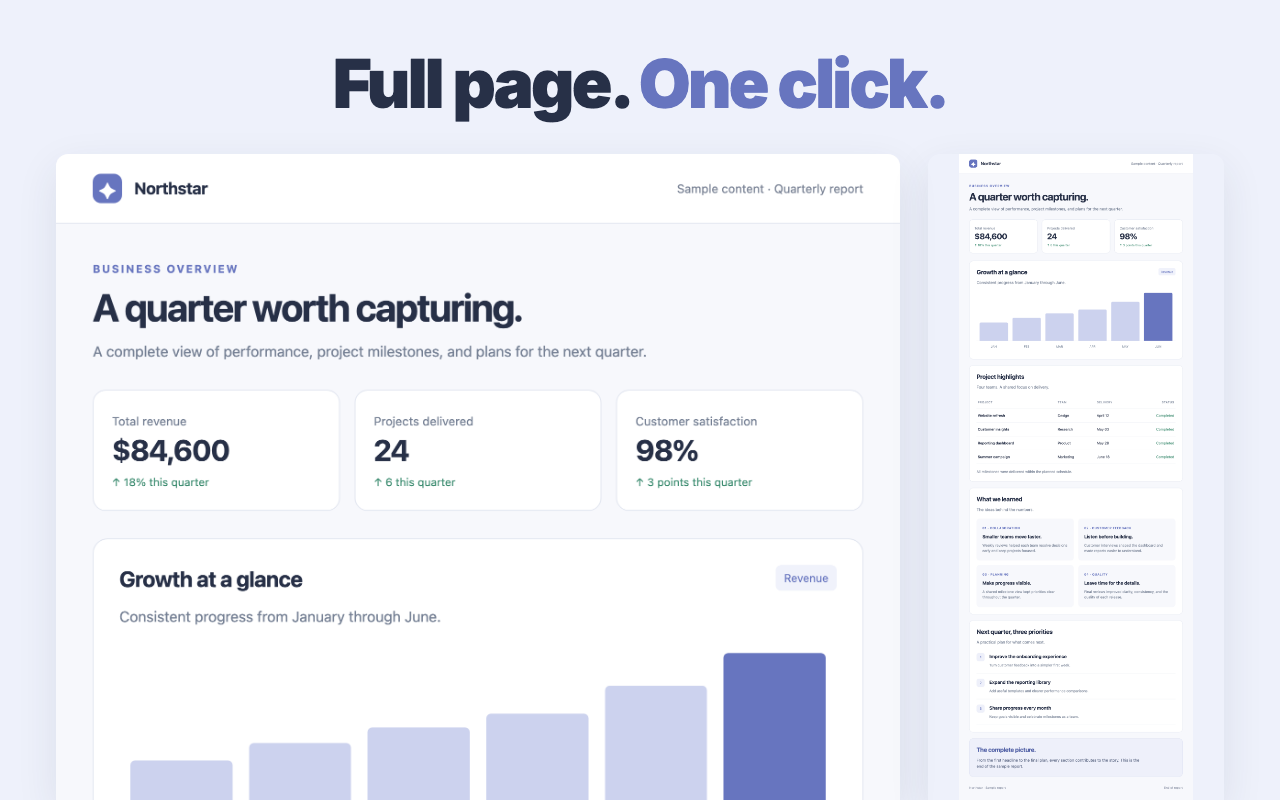
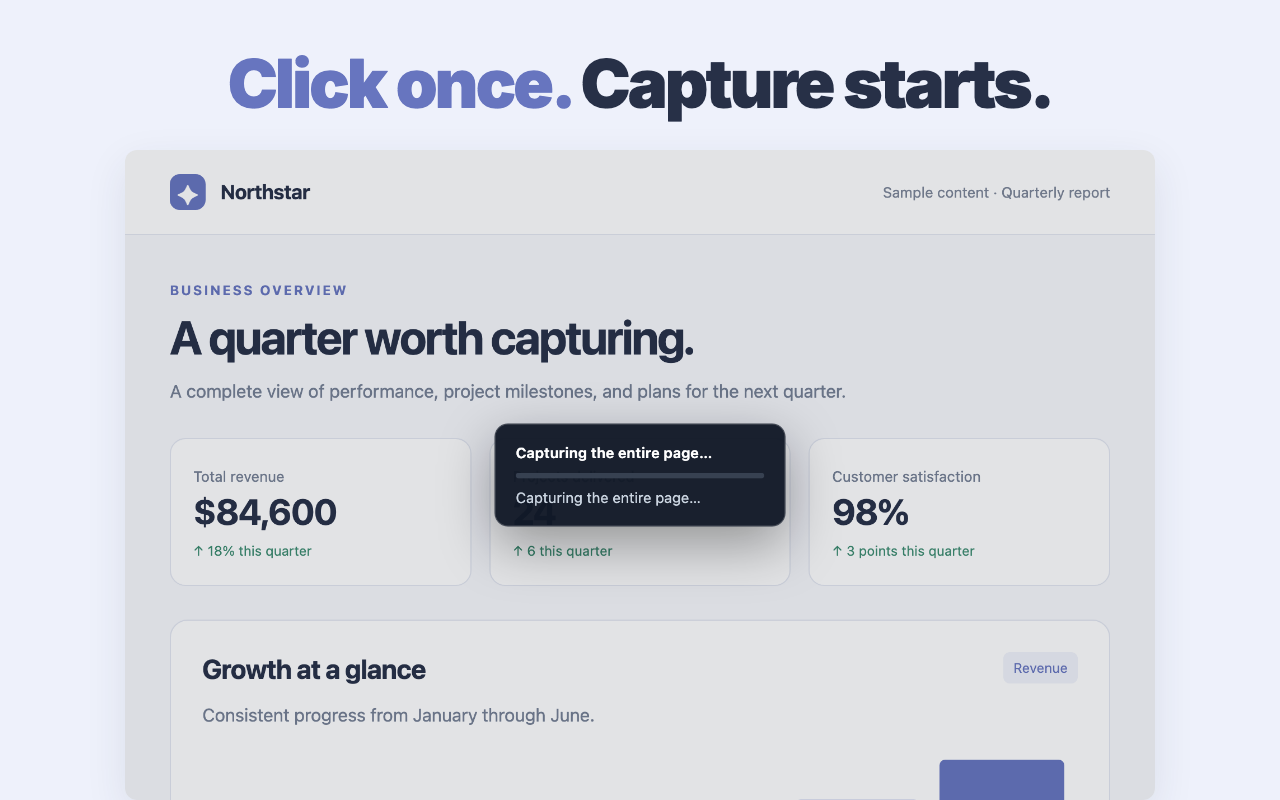
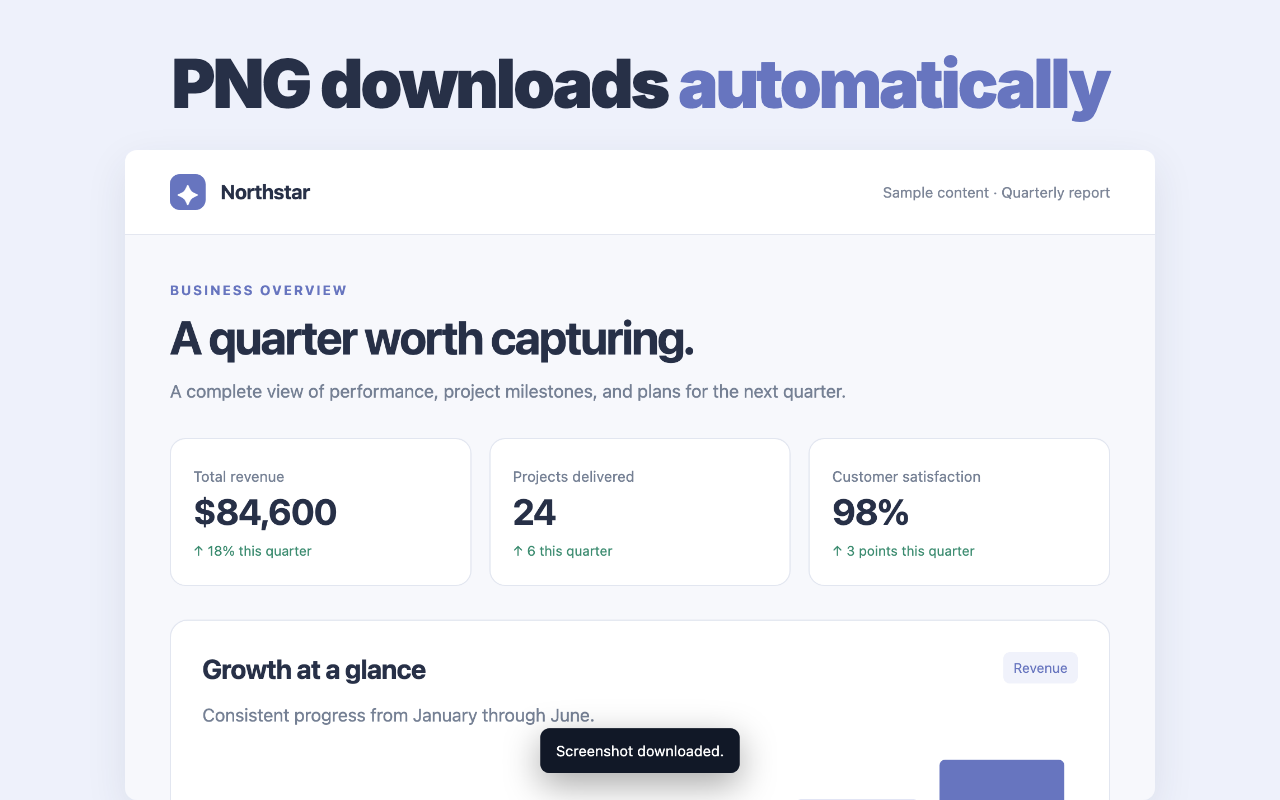
Scrolling Screenshot – Full Screen Capture saves long and wide webpages as PNG files for work, research, and everyday reference. Click the toolbar icon once to start capture immediately; the PNG downloads automatically when capture finishes.
✨ WHAT IT DOES
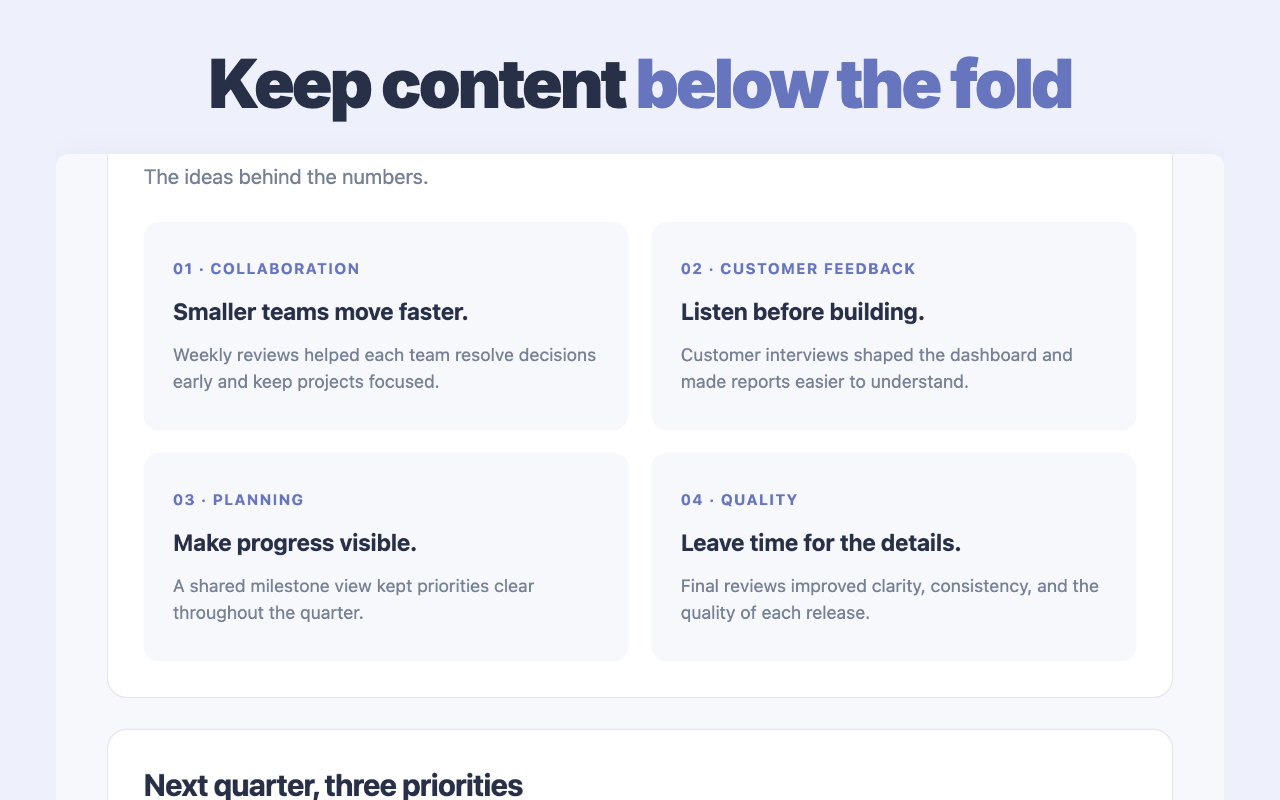
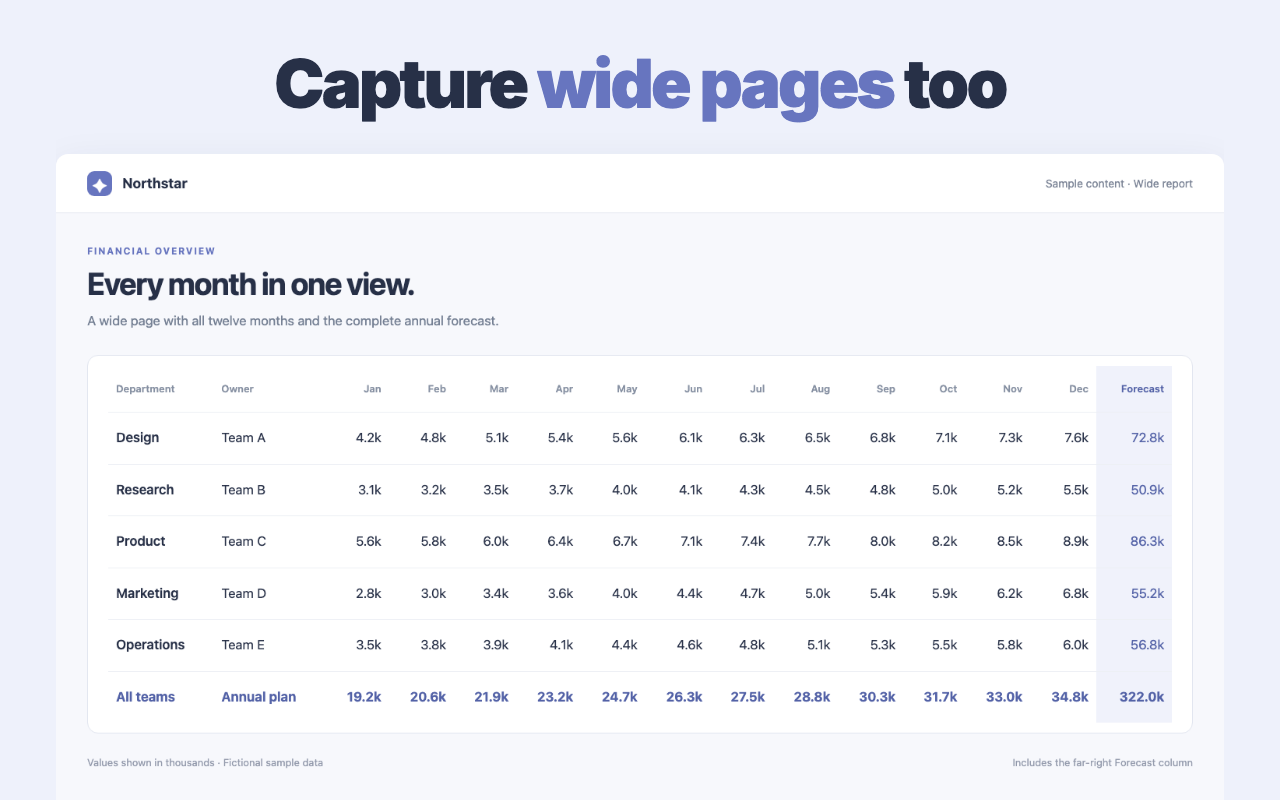
- Save a full page screenshot, including content below the fold and beyond the visible width.
- Automatically scroll through the page before capture to give scroll-triggered content a chance to load.
- Download lossless PNG files directly through your browser's download system.
- Split large results into multiple PNG files when the page exceeds a single image's size limit.
- Return to your previous scroll position after capture.
🚀 HOW TO USE
- Open the webpage you want to save.
- Click the extension icon once. Capture starts immediately.
- Keep the tab active until the PNG download finishes. Press Esc or click the icon again to cancel a capture in progress.
🎯 WHO IT'S FOR Researchers can keep a visual reference of long articles and reports. Developers and designers can attach page screenshots to bug reports or compare layouts. Teams can document a wide dashboard or share a page as it appeared when captured.
🔒 PRIVACY Screenshots are processed inside your browser and saved through Chrome's download system. The capture code does not upload page images to a server. Capture runs when you click the toolbar icon and uses access to the active tab. Local storage keeps the optional review prompt's state.
❓ FAQ Is a scrolling screenshot finished instantly? One click starts the process immediately. Completion time depends on the page size and loading behavior. Keep the tab active while capture runs.
What happens with a very large page? The extension divides the output into PNG parts instead of shrinking the entire page into one image. Pages that keep loading indefinitely may contain more content than the pre-capture scroll can load.
Can it capture Chrome settings or another internal page? Chrome blocks capture on internal pages such as chrome://settings and the Chrome Web Store. Local file pages require Allow access to file URLs in the extension's settings.
Can I select a scrollable panel? Capture starts with the whole webpage when you click the toolbar icon. Independently scrollable panels are captured as displayed within the page; their hidden contents are not expanded.
Screenshots
Promotional artwork